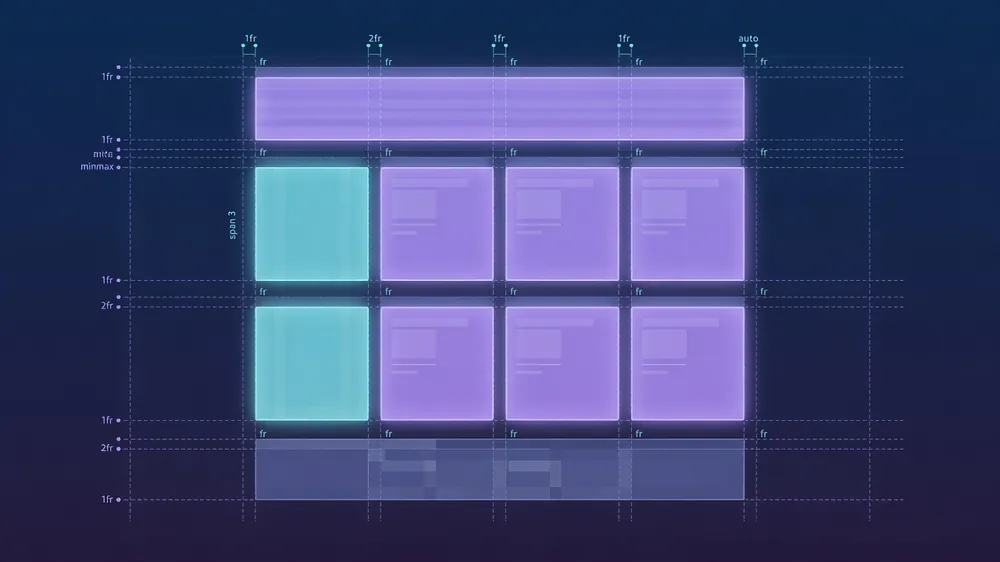
Flexbox excels along a single axis. CSS Grid is the definitive tool for two axes simultaneously: rows and columns that line up, overlap in controlled ways, and reflow without a pile of nested wrappers.
Most Grid bugs come from a fuzzy model of what a track is, how fr shares leftover space, and what auto-fit does when columns collapse. This post is that model, plus the patterns I paste into real pages.
Browser support has been solid for years. You can treat Grid as baseline CSS, not a progressive-enhancement experiment.
The mental model in one paragraph
A grid is a container that defines tracks (column widths and row heights). Items sit in cells. An item can span multiple tracks. You place items by line numbers, by named lines, or by named areas. Free space is shared with fr. Constrained free space is shared with minmax(). Responsive columns that grow and wrap come from repeat() with auto-fit or auto-fill.
If that paragraph sticks, the rest of Grid is vocabulary and a few sharp edges.
Tracks, lines, and cells
When you write:
.grid {
  display: grid;
  grid-template-columns: 200px 1fr 1fr;
  grid-template-rows: auto 1fr auto;
  gap: 1rem;
}
you create:
- Column tracks: three vertical strips,
200px, then two equal shares of leftover width. - Row tracks: header-ish auto height, a flexible middle, footer-ish auto height.
- Lines: for three columns you get four vertical lines (numbered
1through4by default). Same idea for rows. - Cells: intersections of one column track and one row track.
- Gap: gutters between tracks. Gaps are not tracks. Spans do not eat gap space the way margin sometimes feels like it does.
Children flow into cells in source order unless you place them. Placement is optional. A simple card grid needs zero placement rules.
Line placement (when you need it)
.hero {
  grid-column: 1 / 3; /* start line 1, end before line 3 */
  grid-row: 1 / 2;
}

.sidebar {
  grid-column: 3 / 4;
  grid-row: 1 / 3;
}
grid-column: 1 / -1 means full width: first line to last line. Negative indices count from the end. That alone replaces a lot of "full bleed inside a constrained parent" hacks.
Named areas: the map most teams should start with
For page shells and dashboards, areas are easier to read in review than line numbers:
.page {
  display: grid;
  min-height: 100dvh;
  grid-template-columns: 16rem 1fr;
  grid-template-rows: auto 1fr auto;
  grid-template-areas:
    "nav  header"
    "nav  main"
    "nav  footer";
}

.page__nav    { grid-area: nav; }
.page__header { grid-area: header; }
.page__main   { grid-area: main; }
.page__footer { grid-area: footer; }
<div class="page">
  <nav class="page__nav">...</nav>
  <header class="page__header">...</header>
  <main class="page__main">...</main>
  <footer class="page__footer">...</footer>
</div>
Rules that keep areas sane:
- Every cell in the ASCII map must be filled. Use
.for an empty hole if you truly need one. - A named region must form a rectangle. L-shapes are invalid.
- On small screens, swap the whole map in one media query instead of fighting item placement one by one.
@media (max-width: 48rem) {
  .page {
    grid-template-columns: 1fr;
    grid-template-rows: auto auto 1fr auto;
    grid-template-areas:
      "header"
      "nav"
      "main"
      "footer";
  }
}
Source order can stay logical for accessibility. Visual order changes with the area map.
fr: leftover space, not "fraction of the container"
1fr means one share of free space after fixed and min/max content sizes are accounted for. It is not always "one equal slice of 100% width."
grid-template-columns: 200px 1fr 2fr;
If the container is 1000px wide and gaps are zero:
- Reserve
200pxfor column one. - Free space is
800px. - Column two gets
1/3of free space (~266px). - Column three gets
2/3of free space (~533px).
Content can push a track wider than its fr share when the min size of content is larger than the free-space math. That is why you sometimes see overflow "out of nowhere." The fix is usually an explicit minimum:
/* prevent a wide child from blowing out the track */
.grid > * {
  min-width: 0;
}

/* or clamp the track itself */
grid-template-columns: 200px minmax(0, 1fr) minmax(0, 2fr);
minmax(0, 1fr) is a production habit for fluid columns that must shrink below intrinsic content width (tables, long URLs, code blocks).
minmax(): floors, ceilings, and honest columns
minmax(min, max) sets a track's allowed size range. Grid then resolves the used size inside that range.
Common patterns:
/* sidebar that never collapses below readable, never eats the whole page */
grid-template-columns: minmax(12rem, 18rem) minmax(0, 1fr);

/* rows that grow with content but cap for scroll regions */
grid-template-rows: auto minmax(0, 1fr) auto;

/* fluid cards with a preferred size */
grid-template-columns: repeat(auto-fit, minmax(16rem, 1fr));
Think of minmax as the negotiation table between design intent ("about 16rem wide cards") and reality ("viewport is 340px" or "viewport is 1600px").
auto-fit vs auto-fill: the responsive column trap
Both work with repeat() and a flexible track size, usually minmax(...):
.cards {
  display: grid;
  gap: 1rem;
  grid-template-columns: repeat(auto-fit, minmax(16rem, 1fr));
}
Difference that matters:
| Keyword | Empty tracks |
|---|---|
auto-fill |
Keeps empty columns as empty space on the end |
auto-fit |
Collapses empty tracks so remaining items stretch |
With few items on a wide screen:
auto-fillleaves blank columns and items stay at ~`16rem` (or their max) with empty slots after them.auto-fitcollapses those empties, so the last row of items grows to fill the row.
Most marketing grids and card dashboards want auto-fit. Use auto-fill when you need reserved slots or a fixed rhythm of columns even when some cells are empty.
Both need a definite free space to count how many columns fit. Parent width usually provides that. Nested grids inside shrink-wrapped parents can surprise you. Give the grid a width (width: 100%, a track of minmax(0, 1fr), etc.).
Implicit tracks and dense packing
If you place an item outside the explicit template, Grid creates implicit tracks. Defaults:
grid-auto-rows: auto;
grid-auto-columns: auto;
grid-auto-flow: row; /* or column, or dense variants */
grid-auto-flow: dense backfills holes when items have different spans. Useful for masonry-like card walls. Harder to predict for accessibility and keyboard order, so prefer it for visual galleries, not forms.
.gallery {
  display: grid;
  grid-template-columns: repeat(4, 1fr);
  grid-auto-rows: 8rem;
  grid-auto-flow: dense;
  gap: 0.5rem;
}

.gallery__wide { grid-column: span 2; }
.gallery__tall { grid-row: span 2; }
Alignment: two layers people mix up
Grid has alignment for tracks inside the container and for items inside their area:
.grid {
  justify-content: center; /* tracks as a group on the inline axis */
  align-content: start;    /* tracks as a group on the block axis */
  justify-items: stretch;  /* default: items fill cell width */
  align-items: stretch;    /* default: items fill cell height */
}

.item {
  justify-self: end;
  align-self: center;
}
Defaults stretch items. That is why a button inside a grid cell looks full width until you set justify-items: start or justify-self: start on the item.
place-items, place-content, and place-self are the two-axis shorthands.
Common layouts you can ship
1. Responsive card grid
.cards {
  display: grid;
  gap: 1.25rem;
  grid-template-columns: repeat(auto-fit, minmax(min(100%, 18rem), 1fr));
}
min(100%, 18rem) avoids horizontal overflow on viewports narrower than 18rem.
2. Holy grail / app shell
.shell {
  display: grid;
  min-height: 100dvh;
  grid-template-columns: clamp(12rem, 20vw, 18rem) minmax(0, 1fr);
  grid-template-rows: auto 1fr auto;
  grid-template-areas:
    "side head"
    "side main"
    "side foot";
}
3. Form with labels in a clean column
.form {
  display: grid;
  gap: 0.75rem 1rem;
  grid-template-columns: max-content minmax(0, 1fr);
  align-items: center;
}

.form .full {
  grid-column: 1 / -1;
}
4. Media object without flex gymnastics
.media {
  display: grid;
  grid-template-columns: auto minmax(0, 1fr);
  gap: 1rem;
  align-items: start;
}
5. Twelve-column product grid (when design hands you one)
.product {
  display: grid;
  grid-template-columns: repeat(12, minmax(0, 1fr));
  gap: 1rem;
}

.product__hero   { grid-column: span 8; }
.product__aside  { grid-column: span 4; }
.product__full   { grid-column: 1 / -1; }
At a breakpoint, drop to repeat(6, ...) or a single column and reset spans. Named areas often beat twelve columns for shells; twelve columns still help when design systems talk in "span 8 / span 4."
Grid vs Flex: a simple decision rule
| Situation | Prefer |
|---|---|
| One-dimensional row or column of controls | Flex |
| Equal-height card rows that must align in two dimensions | Grid |
| Page regions (nav, main, aside) | Grid areas |
| Wrapping chip list with unknown count | Flex wrap or Grid auto-fit |
| Centering one box in a viewport | Either; Grid place-items: center is short |
| Nested one-axis toolbars inside a two-axis page | Grid shell + Flex toolbars |
You will use both on the same page. Grid for structure, Flex for micro-layout inside cells.
Debugging checklist
When a layout "refuses" to shrink or align:
- Is the item a grid item, or is it nested one level deeper than you think?
- Does a child need
min-width: 0/min-height: 0? - Are you fighting default
stretchalignment? - Did
1frmeet an intrinsic min content size larger than free space? - Is the parent width indefinite so
auto-fitcannot count columns? - Open DevTools Grid overlay. Line numbers and area names show up there. Trust the overlay over guesswork.
What to memorize
- Tracks define the skeleton. Items fill cells or spans.
- Areas are the readable map for page chrome.
frdivides free space after fixed sizes and mins.minmax(0, 1fr)is the fluid column that actually shrinks.auto-fitcollapses empty tracks;auto-fillkeeps them.- Grid for two axes, Flex for one. Nest them freely.
Once those six points are muscle memory, Grid stops feeling like a special syntax and starts feeling like drawing a table that can reflow. `)